
Fix CapCut No Internet Connection Error: 13 Methods
Seeing “No Internet Connection” in CapCut? This guide focuses on diagnosing connection errors, testing Wi-Fi and mobile data, checking app permissions, and identifying network or regional causes. A VPN is not a guaranteed fix.
This article is specifically for troubleshooting. For a separate installation walkthrough, read our CapCut download and installation guide. For India-specific APK availability and source checks, see our CapCut APK availability guide for India.
Before changing settings or reinstalling the app, identify whether the problem comes from your internet connection, CapCut permissions, your device, the network itself, or regional availability.
Quick Answer
Can I download CapCut without a VPN?
Yes, when CapCut is officially available in your region, you can download it without a VPN using an official CapCut source or supported app store.
A VPN is not a universal requirement for CapCut. If CapCut is unavailable in your region, however, simply installing a VPN does not guarantee that the app, templates, AI features, account login, or other services will work.
Regional availability can also differ by platform and feature.
What Is CapCut?
CapCut is a video-editing platform available across mobile, desktop, and web. It provides tools for editing videos, adding text and effects, working with audio, applying transitions, creating captions, and using various AI-powered features. If you need a separate installation walkthrough, see our CapCut APK download and installation guide.
Some CapCut functions require an internet connection because they depend on online services, cloud resources, account authentication, or server-side processing.
That is why you may be able to edit an existing local project while certain online features fail to load.
Download and Installation Checks Before Troubleshooting
The safest approach is to use an official CapCut distribution channel appropriate for your device.
CapCut currently provides official download and installation guidance for Windows, macOS, iOS, and Android.
Method 1: Download CapCut on Android
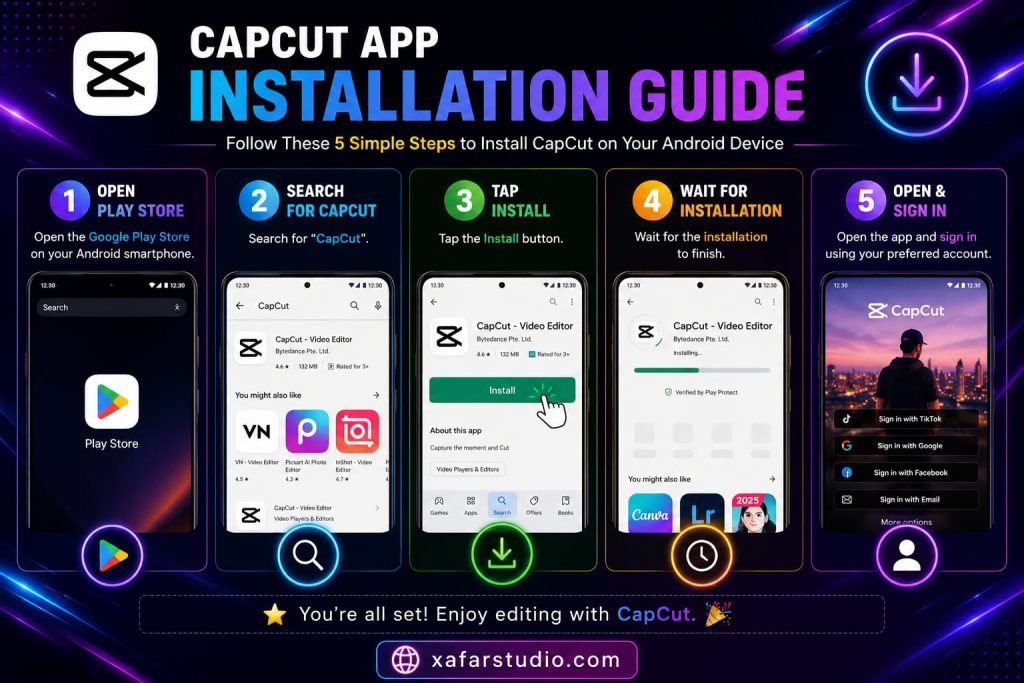
Option A: Google Play Store
- Open the Google Play Store.
- Search for CapCut.
- Open the official CapCut listing.
- Check the developer and app information.
- Tap Install.
- Wait for the installation to finish.
- Open CapCut and test the features that require an internet connection.
If CapCut does not appear in your local Play Store, do not immediately assume that a VPN is required. App availability can vary according to region, device, and store settings.
Option B: Official CapCut APK
CapCut also provides an official Android APK download page.
If you need the APK because the Play Store installation is unavailable or unsuitable for your device, use CapCut’s official APK source rather than downloading a modified APK from an unknown website.
Be particularly careful with pages advertising:
- CapCut Pro Mod APK
- CapCut Premium Unlocked
- CapCut No Restrictions APK
- Cracked CapCut
- Unlimited Credits APK
- Modified CapCut APK
An APK file is not automatically unsafe simply because it is an APK. The important distinction is whether it comes from a trustworthy official source.
How to Download CapCut Without VPN on iPhone
For iPhone and iPad:
- Open the Apple App Store.
- Search for CapCut.
- Open the official CapCut listing.
- Verify the app information.
- Tap Get.
- Complete the Apple authentication process if requested.
- Open CapCut after installation.
CapCut’s own installation guidance recommends downloading the mobile app through the relevant official app store.
If CapCut is unavailable in your App Store region, that is a regional availability issue, not necessarily an internet problem.
How to Download CapCut on PC Without VPN
CapCut provides desktop options for Windows and macOS.
For the safest installation:
- Visit the official CapCut website.
- Choose the appropriate desktop version.
- Download the installer.
- Install the application.
- Open CapCut.
- Sign in if required.
- Test your internet-dependent features.
CapCut also identifies Microsoft Store and App Store options for supported desktop platforms.
Avoid downloading random “CapCut for PC” installers from third-party download websites when an official source is available.
CapCut Says “No Internet Connection” — How to Fix It
If CapCut says “No Internet Connection” even though your phone or computer appears to be online, your internet connection may not be the only problem.
CapCut’s current troubleshooting guidance identifies several possible causes, including network problems, app issues, device settings, restricted networks, outdated software, and service-side problems.
Try the fixes below in order.
1. Check Whether Your Internet Actually Works
First, determine whether the problem is specific to CapCut.
Open another website or app.
For example:
- Open YouTube.
- Open Google.
- Visit another website.
- Try another online application.
If everything else is also offline, the problem is probably your network rather than CapCut.
Try:
- Switching from Wi-Fi to mobile data.
- Switching from mobile data to Wi-Fi.
- Restarting your router.
- Turning Airplane Mode on and off.
- Connecting to another network.
If CapCut works on another network, you have already narrowed down the problem.
2. Switch Between Wi-Fi and Mobile Data
This is one of the most useful troubleshooting tests.
If CapCut works on mobile data but not Wi-Fi
Your Wi-Fi network may be blocking or interfering with CapCut’s connections.
Possible causes include:
- Router configuration
- DNS filtering
- Firewall restrictions
- Public Wi-Fi restrictions
- Workplace or school network policies
- ISP/network-specific problems
If CapCut works on Wi-Fi but not mobile data
Check whether CapCut has permission to use mobile data and whether your phone has a data restriction enabled.
CapCut specifically recommends testing different networks when connection problems occur.
3. Completely Restart CapCut
Close CapCut rather than simply minimizing it.
Then:
- Remove CapCut from your recent apps.
- Wait a few seconds.
- Open CapCut again.
- Test the feature that previously failed.
Temporary application or network-session problems can sometimes disappear after restarting the app.
4. Restart Your Phone or Computer
If restarting CapCut does not help, restart the entire device.
This can refresh:
- Network connections
- Background services
- Temporary system processes
- App sessions
- Network permissions
After restarting, open CapCut again.
5. Update CapCut to the Latest Version
An outdated version can cause compatibility problems or unexpected behavior.
Android
Open:
Google Play Store → CapCut → Update
iPhone
Open:
App Store → Profile → CapCut → Update
PC
Check for updates inside CapCut or use the official CapCut download channel.
CapCut recommends keeping the application updated because newer versions include bug fixes, improvements, and compatibility changes.
If you see Open instead of Update, the store may already consider your installed version current.
6. Clear CapCut Cache on Android
If you are using Android, clearing the cache can help with certain temporary app problems.
The exact menu varies between phone manufacturers.
A typical path is:
Settings → Apps → CapCut → Storage → Clear Cache
Do not blindly select Clear Data.
Clearing application data can remove locally stored information or require you to sign in again. CapCut’s own troubleshooting guidance also warns users to avoid clearing app data when it could affect local projects.
7. Check CapCut’s Network Permissions
Your phone may restrict CapCut’s internet access even when other applications work normally.
Android
Look for CapCut’s:
- Mobile-data permission
- Wi-Fi access
- Background-data permission
- Data Saver restrictions
- Battery optimization restrictions
The exact names depend on your Android manufacturer and software version.
iPhone
Check:
Settings → Cellular → CapCut
Make sure cellular access is enabled if you want CapCut to use mobile data.
Also check whether Low Data Mode or other network restrictions are affecting the connection.
CapCut’s current troubleshooting documentation specifically recommends checking network permissions on both Android and iOS.
8. Disable Data Saver or Battery Restrictions
Some Android devices aggressively restrict background activity.
Check:
- Data Saver
- Battery Saver
- Battery optimization
- Background data
- Restricted apps
If CapCut has been restricted, allow the application the network access it needs.
This is particularly worth checking if CapCut works temporarily but online features fail after the app has been running in the background.
9. Check Your Wi-Fi Network
If CapCut only fails on one Wi-Fi network, the network itself deserves investigation.
This is especially relevant on:
- Office Wi-Fi
- School Wi-Fi
- Hotel Wi-Fi
- Public Wi-Fi
- Shared networks
- Networks with DNS filtering
Try a mobile hotspot.
If CapCut immediately works through the hotspot, your original Wi-Fi connection is a stronger suspect than the CapCut installation.
10. Temporarily Disable VPNs, Proxies, or Network Filters
This may sound counterintuitive when you’re searching for CapCut without VPN, but a VPN can sometimes make connectivity worse rather than better.
CapCut’s own troubleshooting guidance recommends disabling VPNs or network-related blockers when testing connection and login problems.
Also consider temporarily testing without:
- VPN applications
- Proxy settings
- DNS filtering
- Ad-blocking network services
- Certain firewall configurations
Do not assume that a VPN is the solution simply because CapCut displays a network error.
11. Check Whether the Problem Is Regional
Not every CapCut feature is necessarily available everywhere.
Regional availability can affect:
- App availability
- Templates
- AI tools
- Subscriptions
- Certain online features
- Account services
CapCut’s documentation explicitly notes that some features can depend on region and that availability may differ between devices or locations.
Therefore, if the application installs successfully but a specific feature is unavailable, that does not automatically mean your internet connection is broken.
12. Check for a Temporary CapCut Service Problem
Sometimes the problem is on the service side.
If:
- Your internet works normally.
- Other websites and apps work.
- CapCut is updated.
- CapCut permissions are correct.
- Another network produces the same error.
Then a temporary CapCut-side problem becomes more plausible.
In that situation, repeatedly reinstalling the app or changing VPN servers may accomplish nothing.
Check CapCut’s official support information and service communications before making major changes to your device.
13. Reinstall the Official CapCut Version
If the previous steps do not work, reinstalling CapCut can be worth trying.
Before doing this, make sure important projects or data are safely backed up or synchronized where applicable.
Then:
- Uninstall the existing CapCut installation.
- Restart your device.
- Download CapCut again from an official source.
- Install the latest version.
- Sign in.
- Test the connection.
CapCut recommends official installation channels and keeping the latest version for security, compatibility, and stability.
Does CapCut Require Internet?
Not every CapCut editing task requires an internet connection.
Basic editing of locally stored media can work without continuous internet access.
However, internet connectivity may be needed for features involving online services, account authentication, cloud functionality, AI processing, templates, downloads, or other server-dependent resources.
This explains why someone can sometimes edit a video successfully while receiving an internet-related error when trying to access a particular feature.
Why Is CapCut Not Connecting to the Internet?
The most likely causes include:
- Unstable internet
- Wi-Fi restrictions
- Mobile-data restrictions
- Restricted background data
- Data Saver settings
- Outdated CapCut version
- Temporary app bugs
- DNS or network configuration
- VPN or proxy interference
- Public or corporate network restrictions
- Regional availability
- Temporary CapCut service problems
- Device compatibility or system restrictions
CapCut’s own troubleshooting documentation covers network, device, permissions, updates, and service-related causes rather than treating every connection error as a VPN issue.
VPN vs. No VPN: What Should You Try First?
| Situation | First thing to try |
|---|---|
| CapCut installs normally | Use it without a VPN |
| CapCut says no internet | Test another network |
| Works on mobile data but not Wi-Fi | Investigate Wi-Fi/network restrictions |
| Works on Wi-Fi but not mobile data | Check mobile-data permissions |
| App is outdated | Update CapCut |
| Only one feature fails | Check whether that feature has regional/online requirements |
| VPN is already enabled | Disable it temporarily and test |
| App is unavailable in your region | Check official regional availability |
| Random APK downloaded | Replace it with an official installation |
The key point is simple: a VPN is a troubleshooting variable, not a guaranteed CapCut solution.
Is CapCut Safe to Download?
The safest approach is to use CapCut’s official website, official app stores, or CapCut’s own official APK distribution page where appropriate.
CapCut currently provides an official APK page for Android, so users should distinguish that from unofficial modified APK websites.
Avoid downloads advertised as:
- “CapCut Pro unlocked”
- “Premium APK”
- “Mod APK”
- “Unlimited AI credits”
- “No watermark cracked”
- “Patched CapCut”
- “100% unlocked CapCut”
These modified applications can introduce security, privacy, compatibility, or account risks.
Official APK ≠ random APK.
That distinction is important.
CapCut Without VPN: Quick Fix Checklist
If CapCut shows “No Internet Connection”, work through these steps:
- Check whether other apps can access the internet.
- Switch between Wi-Fi and mobile data.
- Restart CapCut.
- Restart your device.
- Update CapCut.
- Check CapCut’s network permissions.
- Disable Data Saver restrictions.
- Check battery/background restrictions.
- Test another Wi-Fi network or mobile hotspot.
- Temporarily disable VPN, proxy, or network filtering.
- Check whether the affected feature is region-dependent.
- Check for a temporary CapCut service issue.
- Reinstall the official version if necessary.
Frequently Asked Questions
Can I download CapCut without a VPN?
Yes, if CapCut is officially available in your region and for your device, you can normally download it without a VPN through an official distribution channel.
Is VPN required for CapCut?
No. A VPN is not universally required to download or use CapCut. Whether you need one depends on regional availability and your network circumstances.
Why does CapCut say “No Internet Connection” when I have internet?
The error can occur because of network restrictions, app problems, outdated software, permissions, VPN or proxy interference, regional limitations, or temporary service issues.
How do I fix CapCut’s internet connection problem?
Start by switching between Wi-Fi and mobile data, restarting CapCut and your device, updating the app, checking network permissions, and testing another network.
Can CapCut work without internet?
Some basic editing functions can work offline, but features that depend on online services require an internet connection.
Can I install CapCut APK without a VPN?
If the official CapCut APK is available to you, you may be able to install it without a VPN. Use an official CapCut source rather than an unknown or modified APK.
Why is CapCut not available in my app store?
App availability can vary by country, region, device, and platform. If CapCut does not appear in your local store, check official CapCut information rather than assuming that a VPN will solve the issue.
Why does CapCut work on mobile data but not Wi-Fi?
Your Wi-Fi network may be blocking or interfering with the connections CapCut requires. Test another Wi-Fi network or mobile hotspot to confirm.
Why does CapCut work on Wi-Fi but not mobile data?
Check whether CapCut has permission to use mobile data and whether your phone’s Data Saver or other restrictions are limiting the app.
Should I use a VPN if CapCut says no internet?
Not as your first step. First determine whether the problem is your connection, permissions, app version, network, or regional availability. CapCut itself recommends testing network conditions and, in some troubleshooting situations, disabling VPNs or similar network tools.
Final Verdict: Can You Use CapCut Without VPN?
Yes, when CapCut is officially available in your region and your network can access its services normally, you can use CapCut without a VPN.
If you are seeing “No Internet Connection,” don’t immediately install a VPN or download a modified APK.
Instead:
- Check your internet.
- Switch between Wi-Fi and mobile data.
- Restart CapCut.
- Restart your device.
- Update CapCut.
- Check network permissions.
- Test another network.
- Disable VPNs or network filters temporarily.
- Consider regional availability.
- Reinstall the official CapCut version if necessary.
The safest strategy is to use official CapCut distribution channels and the latest version available for your device and region.